The chance of this post I try to give something to friends who might be on the enlightenment that I have to say here, many are already familiar with or even go into what I would post this time, something which I will post this time talking about the installation of Local Area Network (LAN). I emphasize on some of the discussion below :

Out of the NIC is generally connecting it with the switch that is used together with another computer.

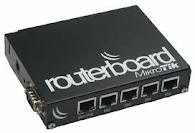
If the computer networks connected to different networks, It would require a router device. To protect and secure the network are the Firewall, Proxy server. Besides, the partners are still referred to as a bridge network, wireless router, access point, and so forth.
Each network device requires an IP Address, IP Address There are two types of IPv4 and IPv6, which is commonly used IPv4. IP Address IPv4 version consists of 4 groups of 8-bit binary number is converted to a decimal number that is easy to understand.
IP address is divided into five classes, Class A, Class B, Class C, Class D, Class E, but in actual classes used to provide IP address is class A, Class B, Class C.
Each class has a public IP for the benefit of local interests
Class A has a special IP address that has been allocated for testing the network, which is 127.0.0.0
Write the IP address error will cause the appearance of error messages, for example if address 127.0.0.0 IP address to NIC.

Each class has an IP subnet mask to determine the network number and host and user.
As an example of a class C IP address local: 192.168.0.1 with a subnet mask of 255.255.255.0
a number of binary subnet mask = 24, so the IP address 192.168.0.1/24 could be written as a binary number 0 is equal to 8 pieces, then the IP address 192.168.0.1 has a kind friend as much as 28 = 256, that is : 192.168.0.0 to 192.168. 0.255
192.168.0.0 Cannot be used as an IP address for the network, while 192.168.0.255 is the IP address for the broadcast. So the effective number of IP addresses only 256-2 = 254.
Than 1111 111.1111 1111 .1111 1111.0000 0000 can also be 1111 111.1111 1111 .1111 1111.1000 0000 or 1111 111.1111 1111 .1111 1111.1100 0000
Subnet Mask 1111 1111.1111 1111.1111 1111.1100 0000 Have a number of binary 1 = 26 and the number of binary 0 = 26
So for the same IP address 192.168.0.1/26, subnet mask of 255.255.255.192.
Binary 1 at the end of = 2 and a binary 0 = 6
binary 1 indicates the number of network = 22 = 4
Binary 0 indicates the host for each network = 26 = 64
IP Address in the table it can be:
- Explaining the network hardware and their functions.
- Explains IP addressing Address.
- Calculate IP addressing and Subnet Address IP Address.
- Explain the network topology.
- Topology design specifications required.

NIC or LAND Card

Switch

Router
If the computer networks connected to different networks, It would require a router device. To protect and secure the network are the Firewall, Proxy server. Besides, the partners are still referred to as a bridge network, wireless router, access point, and so forth.
Each network device requires an IP Address, IP Address There are two types of IPv4 and IPv6, which is commonly used IPv4. IP Address IPv4 version consists of 4 groups of 8-bit binary number is converted to a decimal number that is easy to understand.
Biner
|
Decimal
|
00000000
|
0
|
11111111
|
255
|
IP address is divided into five classes, Class A, Class B, Class C, Class D, Class E, but in actual classes used to provide IP address is class A, Class B, Class C.
Class
|
Biner
|
Decimal
|
A
|
0000 0001.X.Y.Z to 0111 1111.X.Y.Z
|
1.X.Y.Z to 127.X.Y.Z
|
B
|
1000 0000.X.Y.Z to 1011 1111.X.Y.Z
|
128.X.Y.Z to 191.X.Y.Z
|
C
|
1100 0000.X.Y.Z to 1101 1111.X.Y.Z
|
192.X.Y.Z to 223.X.Y.Z
|
Each class has a public IP for the benefit of local interests
Class
|
IP Local
|
A
|
10. 0.0.0 to 10.255.255.255
|
B
|
172. 16.0.0 to 172. 31.255.255
|
C
|
192.168.0.0 to 192.168.255.255
|
Class A has a special IP address that has been allocated for testing the network, which is 127.0.0.0
Write the IP address error will cause the appearance of error messages, for example if address 127.0.0.0 IP address to NIC.

Error message when one writes the IP address
Each class has an IP subnet mask to determine the network number and host and user.
Class
|
Subnet Mask (Default)
|
A
|
1111 1111.0000 0000.0000 0000.0000 0000 or 255.0.0.0
|
B
|
1111 1111.1111 1111.0000 0000.0000 0000 or 255.255.0.0
|
C
|
1111 1111.1111 1111.1111 1111.0000 0000 or 255.255.255.0
|
As an example of a class C IP address local: 192.168.0.1 with a subnet mask of 255.255.255.0
a number of binary subnet mask = 24, so the IP address 192.168.0.1/24 could be written as a binary number 0 is equal to 8 pieces, then the IP address 192.168.0.1 has a kind friend as much as 28 = 256, that is : 192.168.0.0 to 192.168. 0.255
192.168.0.0 Cannot be used as an IP address for the network, while 192.168.0.255 is the IP address for the broadcast. So the effective number of IP addresses only 256-2 = 254.
Than 1111 111.1111 1111 .1111 1111.0000 0000 can also be 1111 111.1111 1111 .1111 1111.1000 0000 or 1111 111.1111 1111 .1111 1111.1100 0000
Subnet Mask 1111 1111.1111 1111.1111 1111.1100 0000 Have a number of binary 1 = 26 and the number of binary 0 = 26
So for the same IP address 192.168.0.1/26, subnet mask of 255.255.255.192.
Binary 1 at the end of = 2 and a binary 0 = 6
binary 1 indicates the number of network = 22 = 4
Binary 0 indicates the host for each network = 26 = 64
IP Address in the table it can be:
IP Address
|
function
|
192.168.0.0
|
Network 1
|
192.168.0.1 to 192.168.0.62
|
User 1
|
192.168.0.63
|
Broadcast 1
|
192.168.0.64
|
Network 2
|
192.168.0.65 to 192.168.0.126
|
User 2
|
192.168.0.127
|
Broadcast 2
|
192.168.0.128
|
Network 3
|
192.168.0.129 to 192.168.0.61
|
User 3
|
192.168.0.191
|
Broadcast 3
|
192.168.0.192
|
Network 4
|
192.168.0.193 to 192.168.0.254
|
User 4
|
192.168.0.255
|
Broadcast 4
|